
Canva is an online design tool that helps people create digital marketing content easily. It works with simple drag-and-drop features and templates so you can create professional-looking designs.
Here is a guide to help you get started with the free version of Canva and understand its main features:
How to Sign Up for a Canva Account
1. Go to www.canva.com
2. Click "Sign Up"
3. Choose how you want to register
- Others
4. Verify your account if necessary
Navigate the Canva Dashboard
1. Search Bar
- You can search for templates such as Instagram posts, logos, posters, and more.
2. Create Button
- Located at the top left, you can use this to create a custom or templated designs.
3. Recents Section
- This displays your recent saved projects.
4. Templates Tab
- Here, you can browse thousands or designs.
.png?width=670&height=332&name=screenshot-1771964461424%20(1).png)
Canva Editor Layout
1. Tools Menu:
- Templates: Pre-designed layouts
- Elements: Shapes, icons, frames, photos, videos, and more
- Text: Add headings, subheadings, and body text
- Uploads: Upload your own images and videos
- QR Code App: Create your own QR codes
2. Main Canvas Area
- This is the blank canvas where your design will go
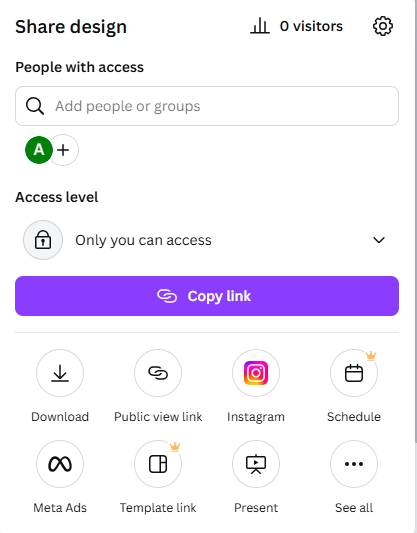
Saving, Downloading, and Sharing
1. Saving
-
Canva automatically saves your work as you make changes
2. Downloading
- Click "Share" at the top right
- Click "Download"
- Choose the file type and what page you would like to download
- Click "Download"
3. Sharing
- Share a link
- Collaborate with others
- Post directly to social media
- Present directly from Canva
Beginner Tips
1. Start with templates, you can always customize them
2. Keep designs simple
3. Use alignment tools to ensure clean layouts
4. Stick to a consistent theme