---
title: How to Access inSITE Admin Reports
description: Accessing order history and remuneration reports in your inSITE dashboard.
---
[Skip to content](https://go.standardprocess.com/insite/how-to-access-insite-admin-reports#main-content)
English
Show submenu for translations

Open main navigation
Close main navigation
- English
Show submenu for translations
How can we help you?
- There are no suggestions because the search field is empty.
1. [inSITE Knowledge Base](https://go.standardprocess.com/insite?hsLang=en)
2. [Reports](https://go.standardprocess.com/insite/reports?hsLang=en)
# How to Access inSITE Admin Reports
## This guide will walk you through generating and customizing your Remuneration Report and Order History Report in your inSITE Admin portal.
### Logging into your inSITE Account
Navigate to your Standard Process account and log in. [See here for more details](https://go.standardprocess.com/insite/how-to-login-to-the-insite-admin-dashboard?hsLang=en) on how to login.
****
### **Remuneration Report**
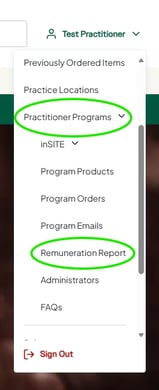
Once you are logged in, click your name in the upper-right corner, then click **"Practitioner Programs."** Under this section, click **"Remuneration Report."**
The remuneration report summarizes your payout amounts from Standard Process for your supplement sales.
Click **"Filter,"** then **"Order Date"** and **"Sales Channel"** filters will appear.
Select the date(s) you want to pull the data for. Reports are generated monthly, including partial months. For example, on May 6, the report includes orders invoiced and shipped from May 1–5.
Select the sales channel.
Click "**Apply,"** and the data will appear.
To export the report to an Excel file, click **"Download Remuneration Report".**

### **Program Orders - Order History Report**
The program orders (order history) report summarizes information related to orders placed on your inSITE templated website. It includes additional information such as:
- Order status
- Discount percentages
Under **"Practitioner Programs,"** click **"Program Orders."**
Click **"Filter,"** and select any of the filters you would like.
To export the report, click **"Download to CSV."**

- [Getting started](https://go.standardprocess.com/insite/getting-started?hsLang=en#main-content)
- [inSITE Shopify App](https://go.standardprocess.com/insite/getting-started?hsLang=en#insite-shopify-app)
- [inSITE Templated Websites](https://go.standardprocess.com/insite/getting-started?hsLang=en#insite-templated-websites)
- [Marketing](https://go.standardprocess.com/insite/marketing?hsLang=en#main-content)
- [Email](https://go.standardprocess.com/insite/marketing?hsLang=en#email)
- [Social Media](https://go.standardprocess.com/insite/marketing?hsLang=en#social-media)
- [SEO](https://go.standardprocess.com/insite/marketing?hsLang=en#seo)
- [Reports](https://go.standardprocess.com/insite/reports?hsLang=en)
- [Settings](https://go.standardprocess.com/insite/settings?hsLang=en)
- [Support](https://go.standardprocess.com/insite/support?hsLang=en)
- [Integrations](https://go.standardprocess.com/insite/integrations?hsLang=en)
- [Meta](https://go.standardprocess.com/insite/meta?hsLang=en)
- [Default HubSpot Blog](https://blog.standardprocess.com/)
[](http://www.standardprocess.com)
[mailto:email@email.com](mailto:email@email.com)
Copyright © 2026, Standard Process Inc.