
Category filters are important because they make product collections easier to navigate, faster to shop, and more likely to convert into sales.
Install Shopify Search & Discovery App
1. Log into your Shopify admin account.
2. Click "Apps."
3. Search for "Search & Discovery."
4. Click "Install" and then click "Install" again.
Create the Category Filters
1. Click "Search & Discovery."
2. Click "Filters."
3. Click "Add Filter."
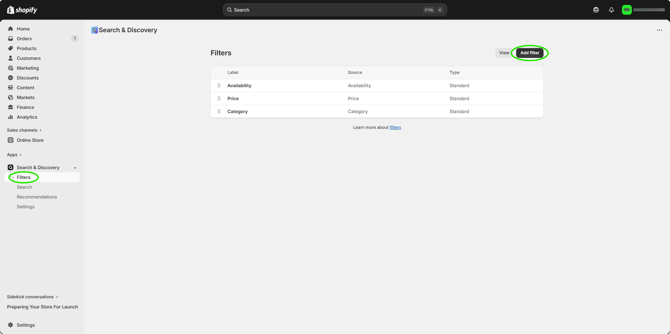
4. In the "Source" section, click "More filters."
5. In the "Filter label" section, name the filter (Ex. Properties).
Create Filter Groups
1. Scroll down to the "Values" section.
2. Select the corresponding values. For example, anything that is under "Cardiovascular System" should be selected.
3. Click "Create group."
4. Name the group. For example, if it corresponds to the Cardiovascular System, name is "Cardiovascular System."
5. Click "Done."
6. Repeat this process to make as many filters as you need to cover all the different values. Make sure all the outlier values are under a named group.
7. Click "Save" at the bottom.
Add Filters to Collection Pages
1. Go to "Online Store."
2. Click "Themes."
3. Click "Customize."
4. Navigate to the "Collection page."
5. Click the "Collection template."
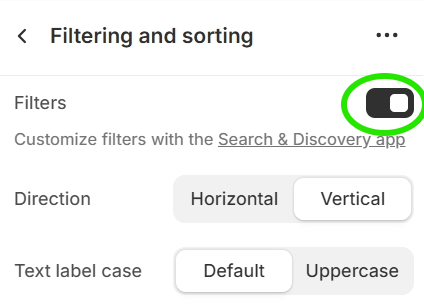
6. Make sure "Filtering" is enabled.
7. Click "Save."
* Note this may be different depending on the theme of your store.
Test Filters
1. Hover over "Online Store" and click the eye icon to view your store.
2. Click "Collections" or "Catalog."
3. Make sure the filters are displayed.
4. Edit as needed.